FAQ
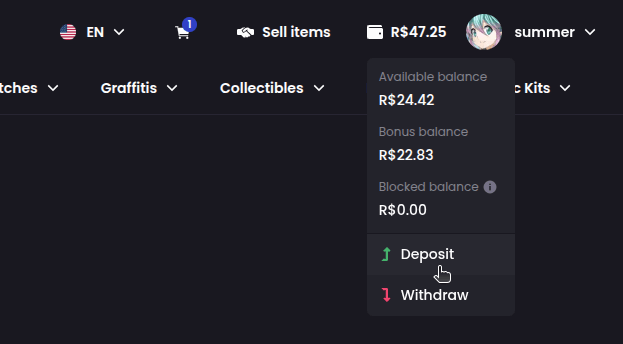
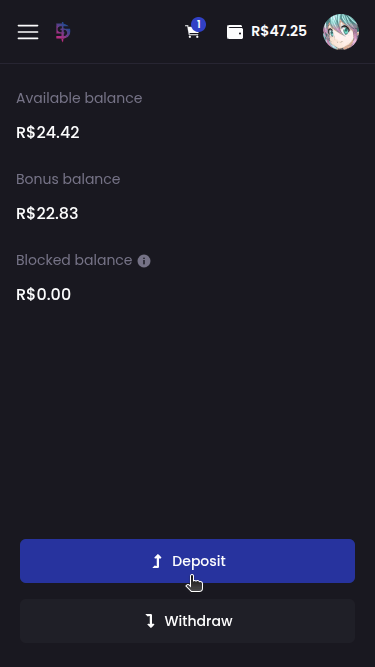
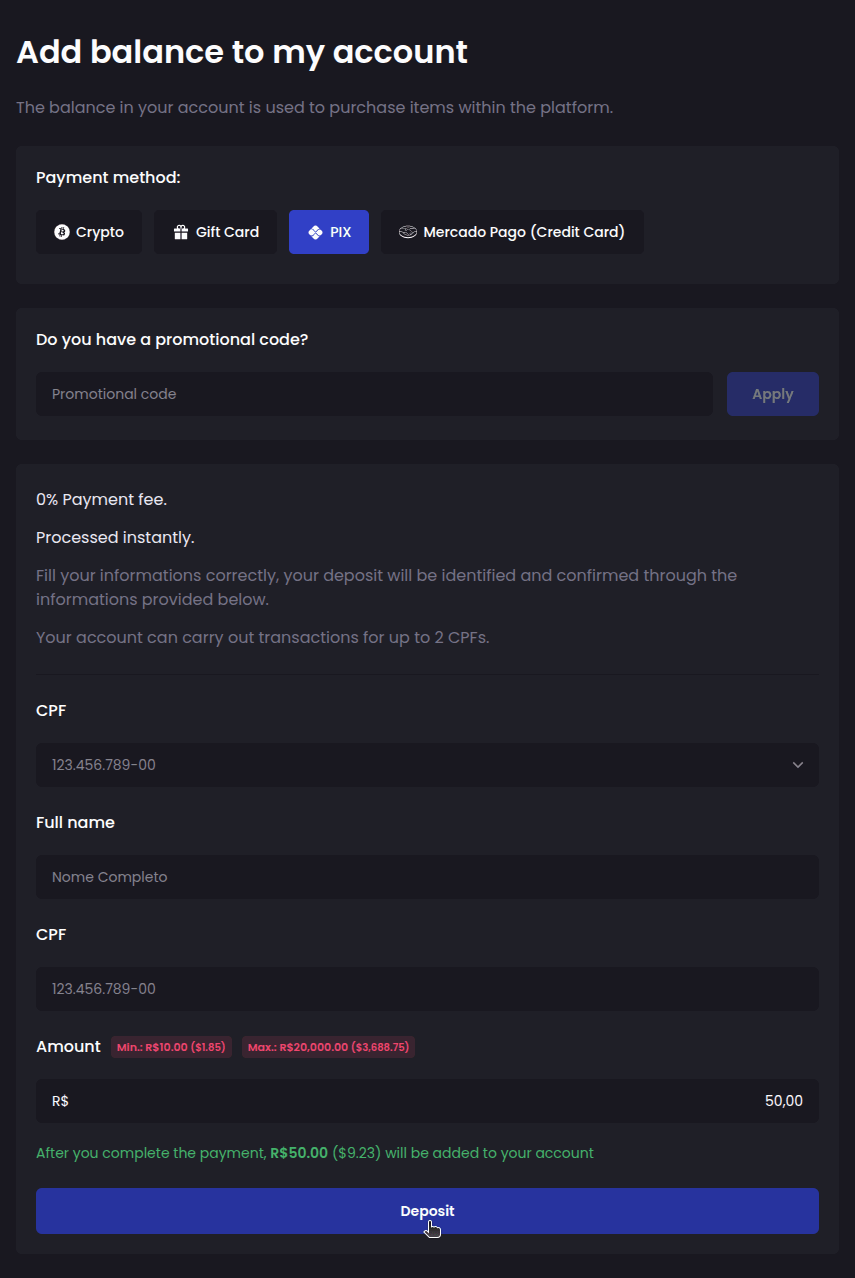
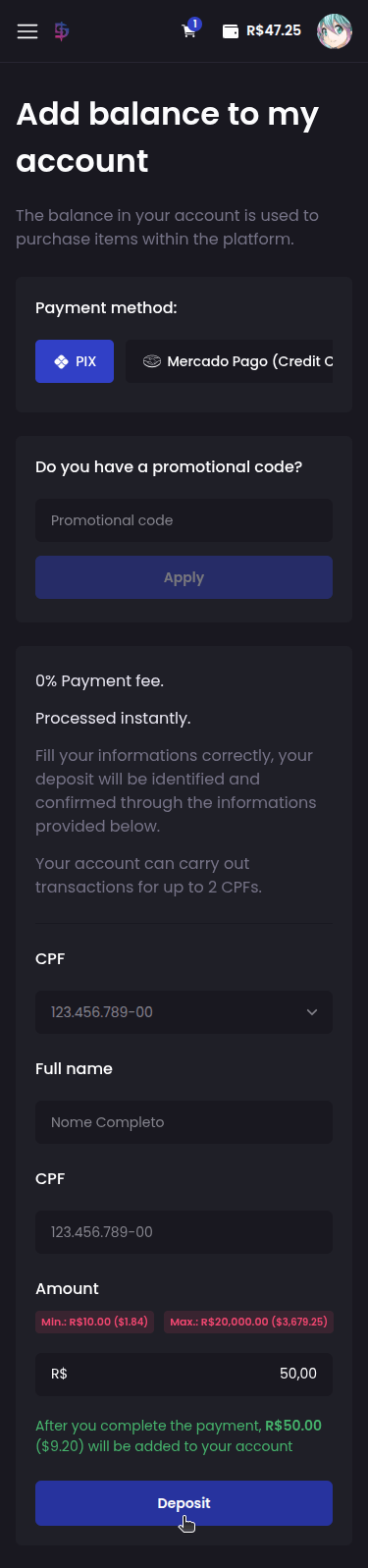
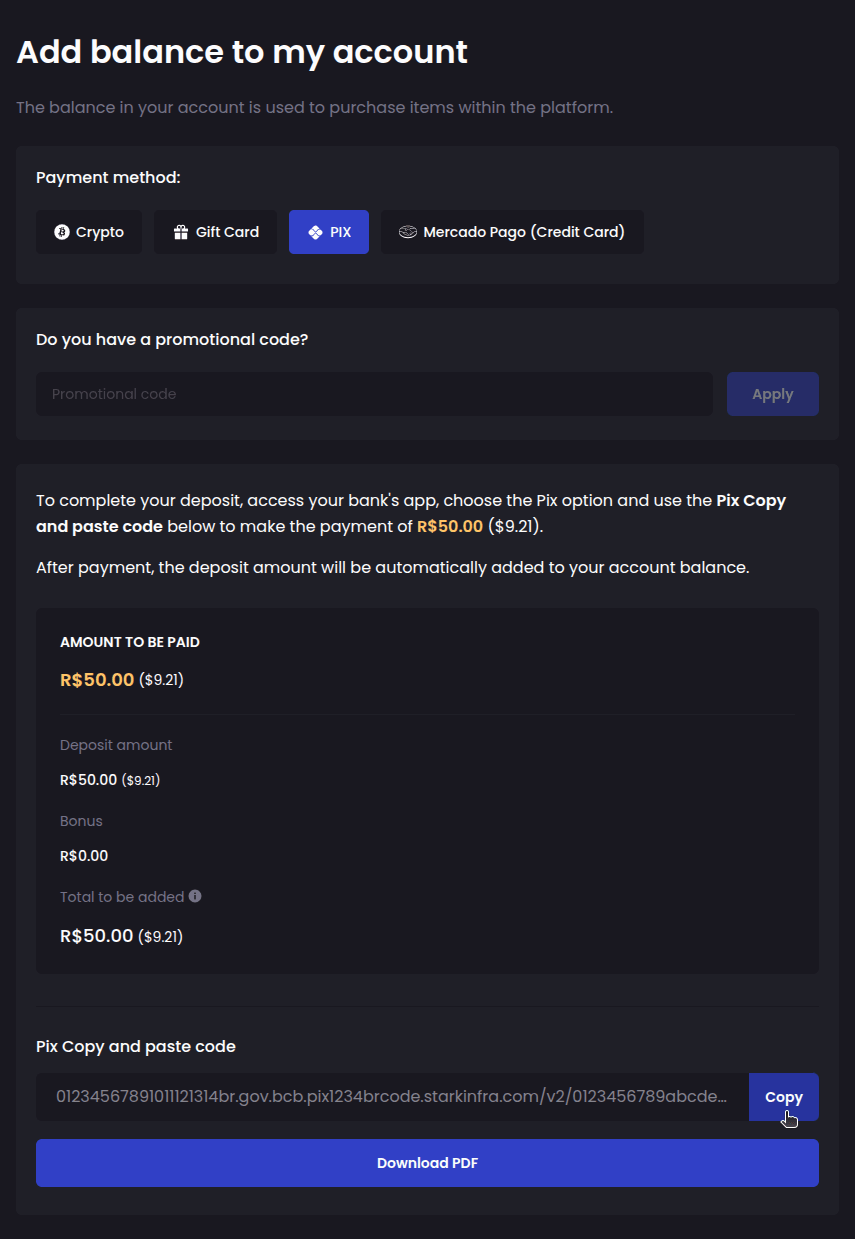
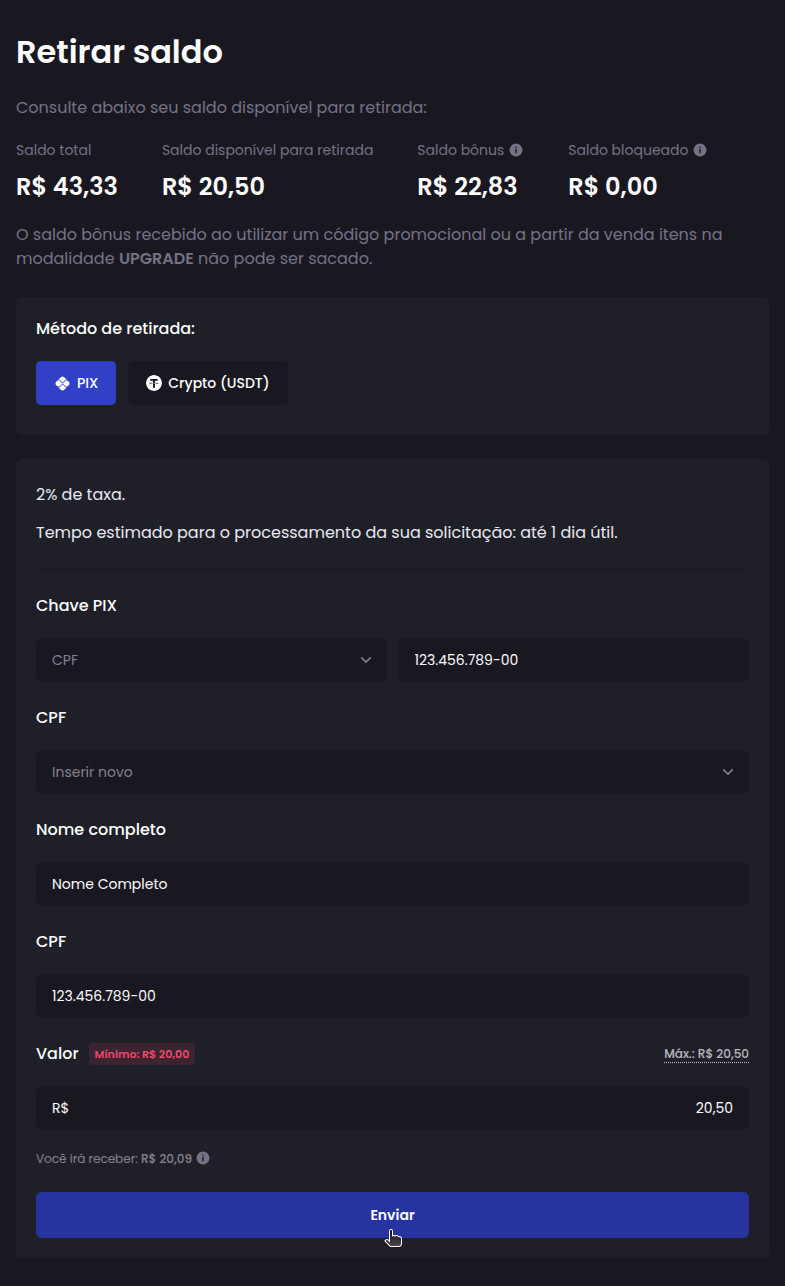
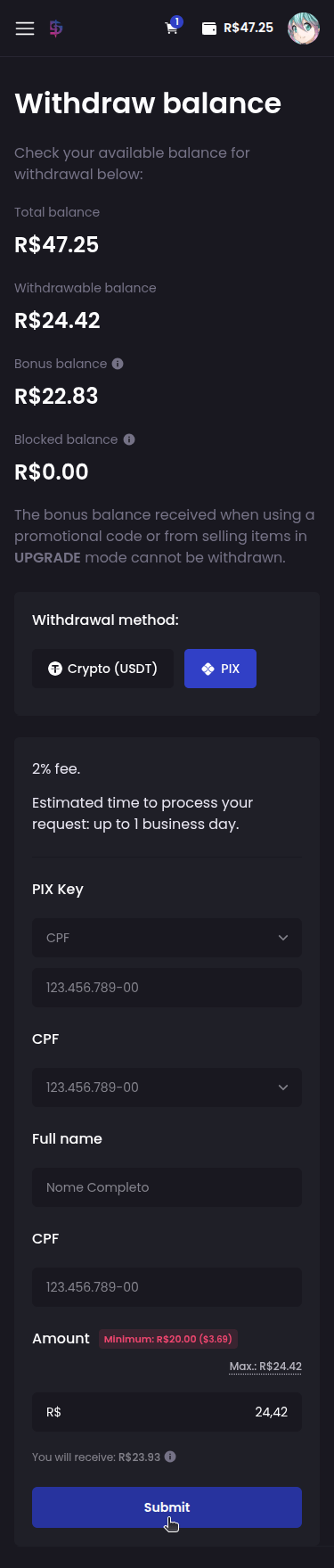
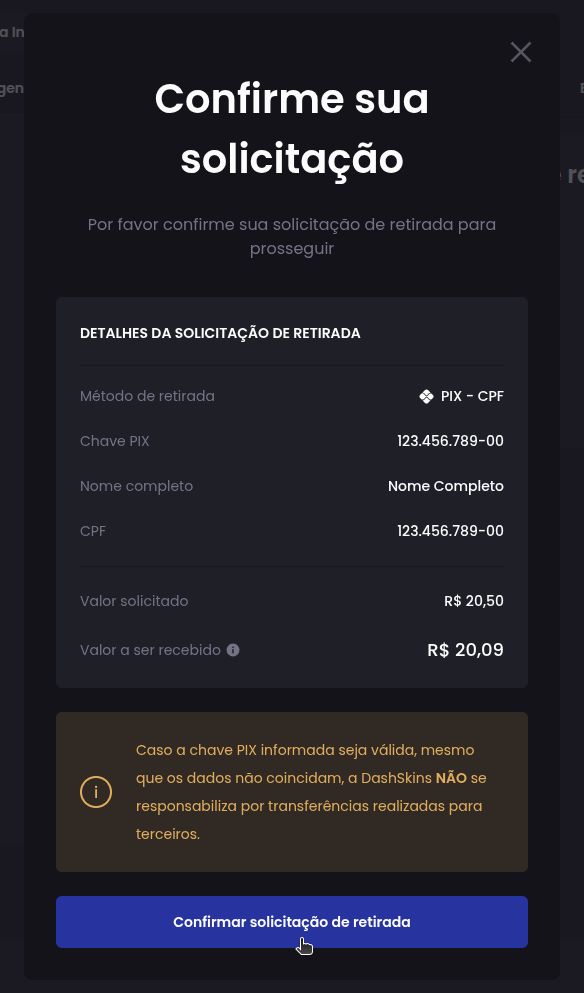
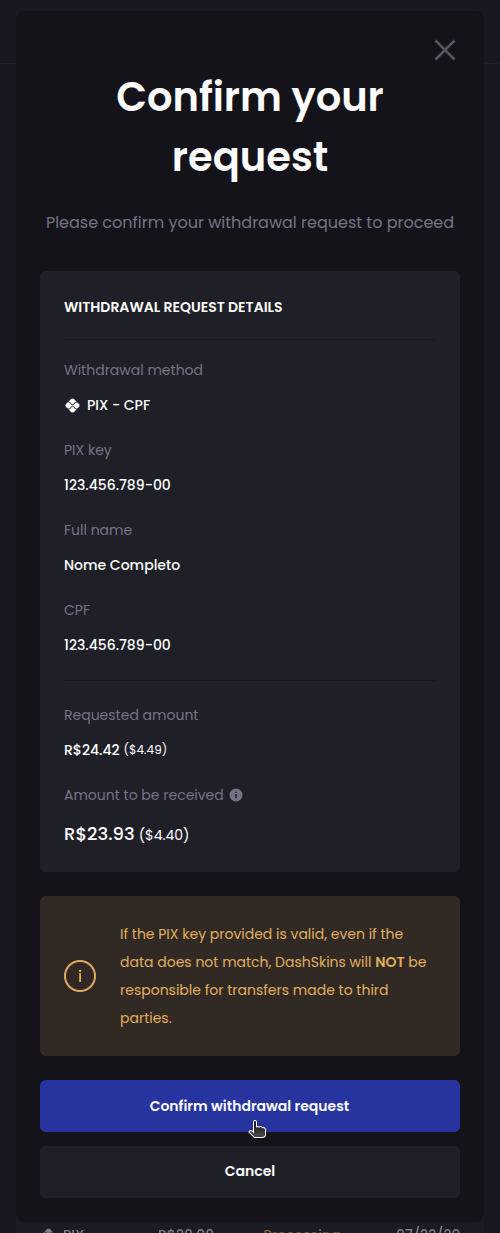
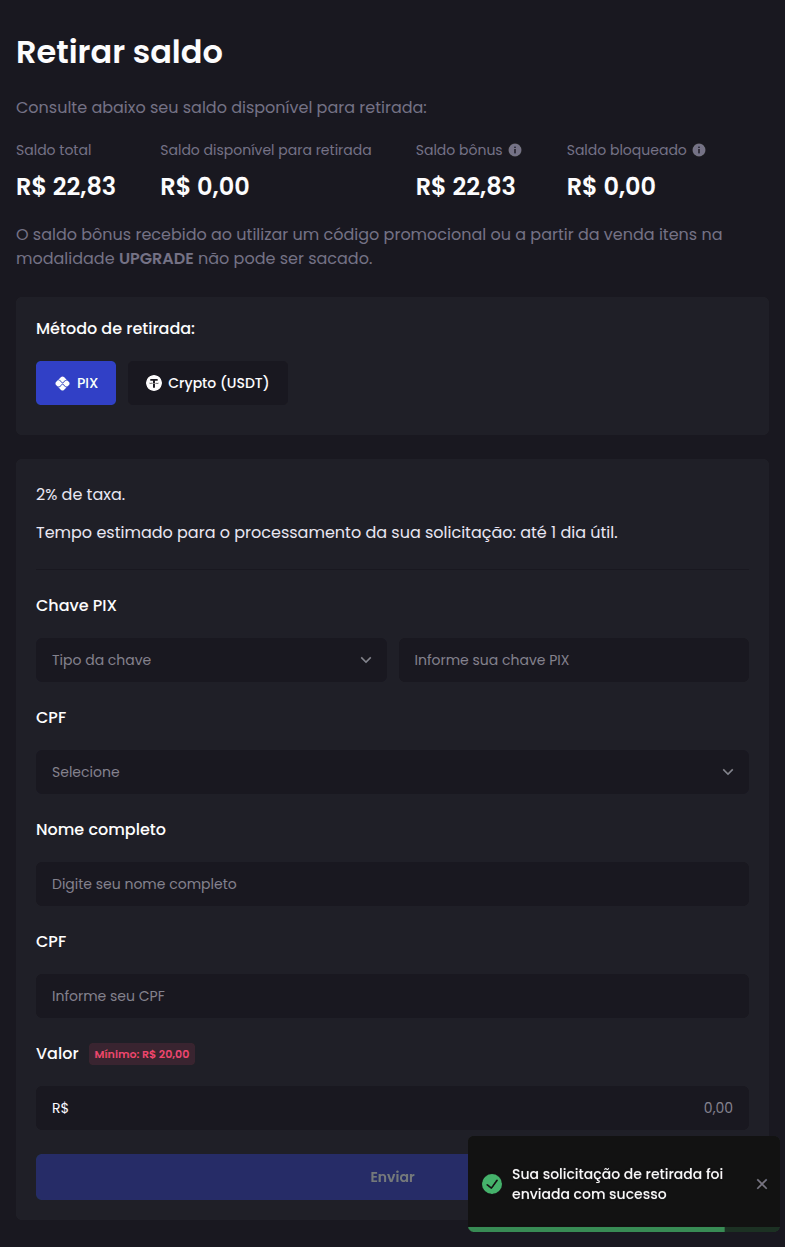
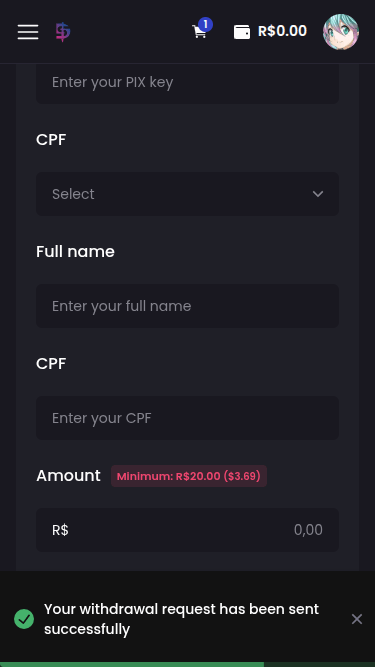
It's very simple! Find and add the skins you want to your shopping cart:
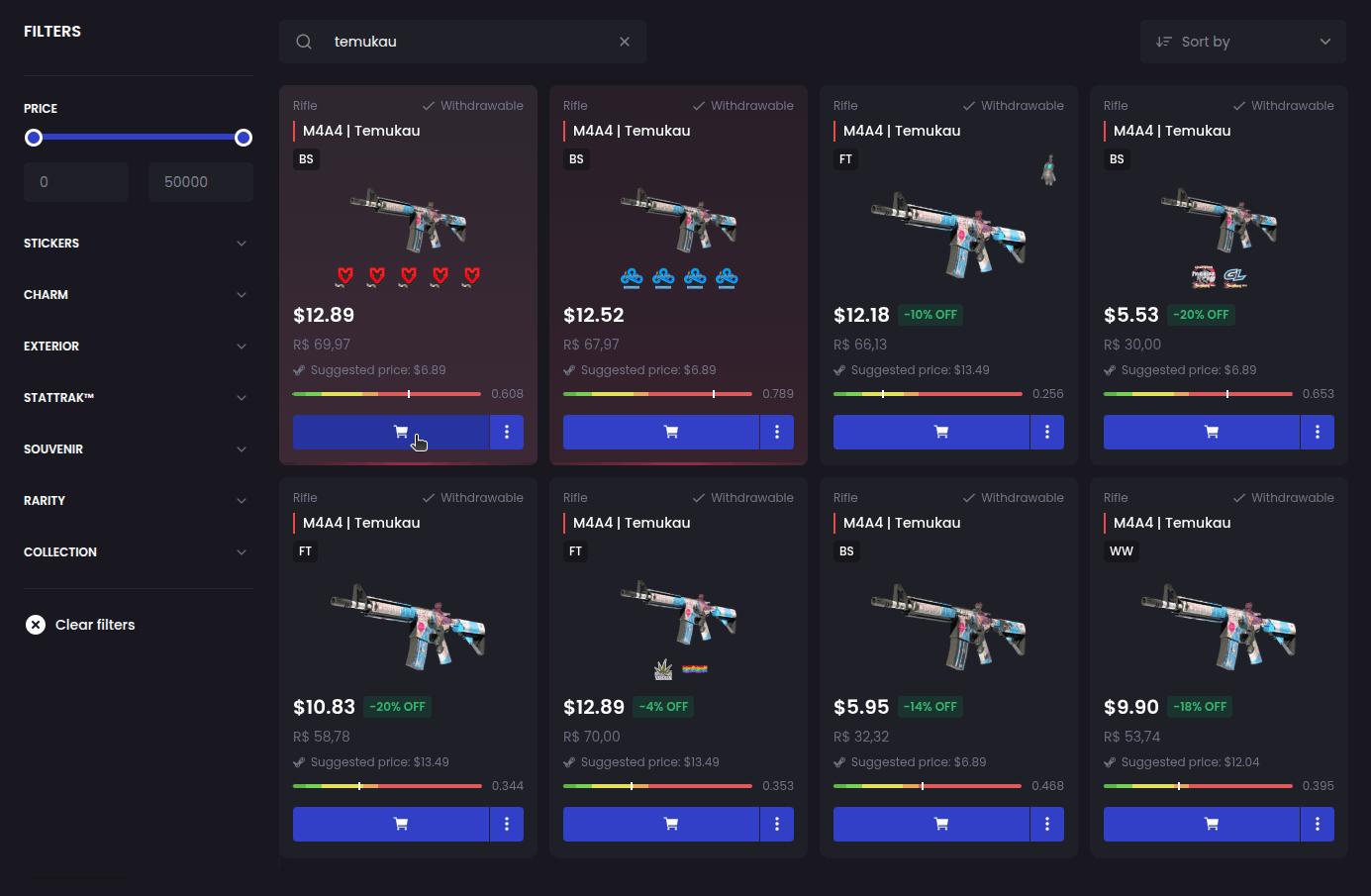
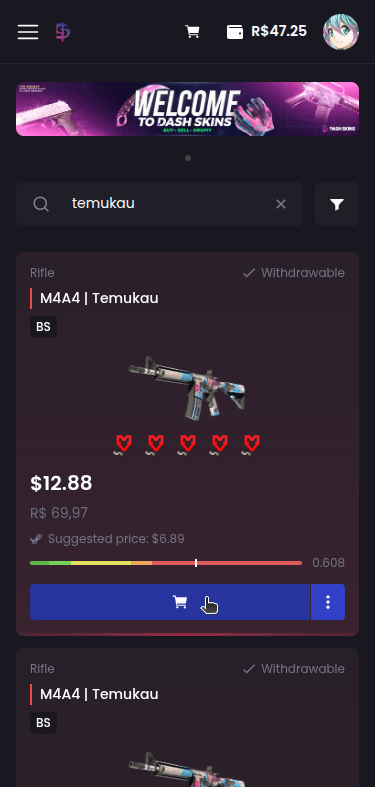
After adding all the skins click on your cart:
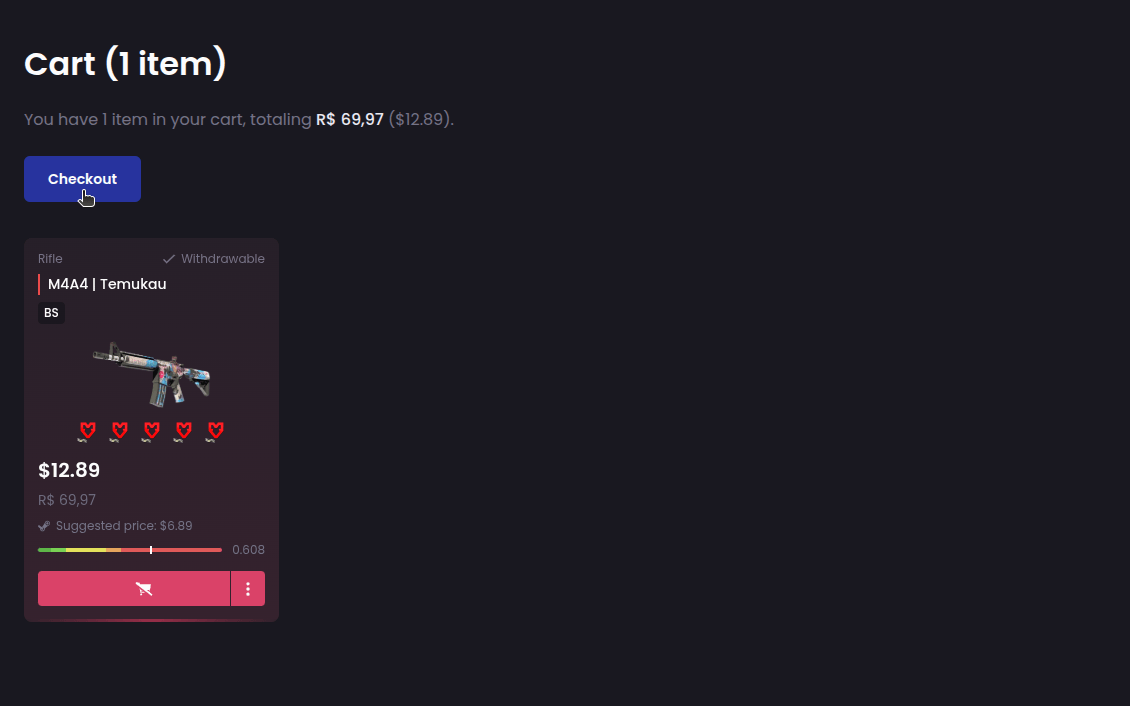
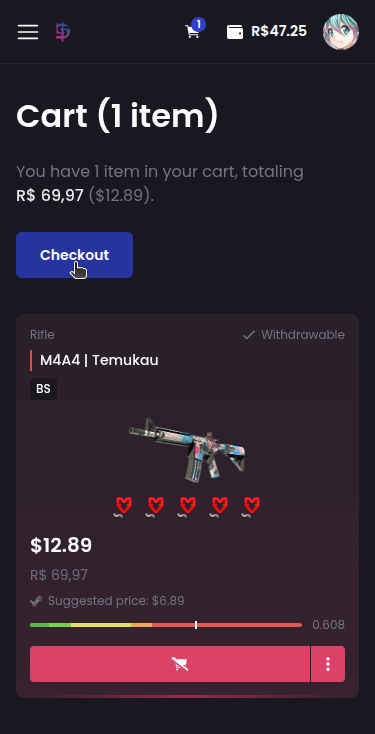
Review the items you added, then click Checkout:
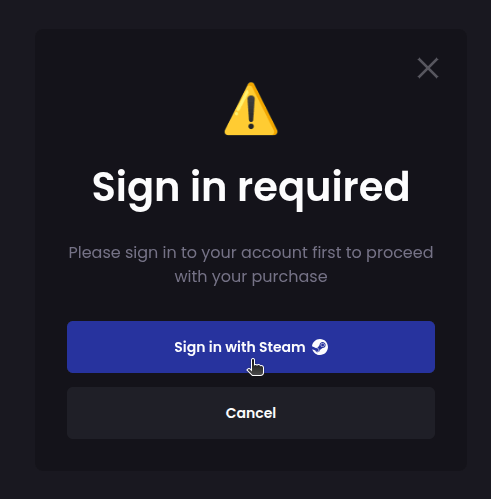
Detail: If you don't already have an account on the platform, or are not logged in, you will need to access or create your account first before continuing:
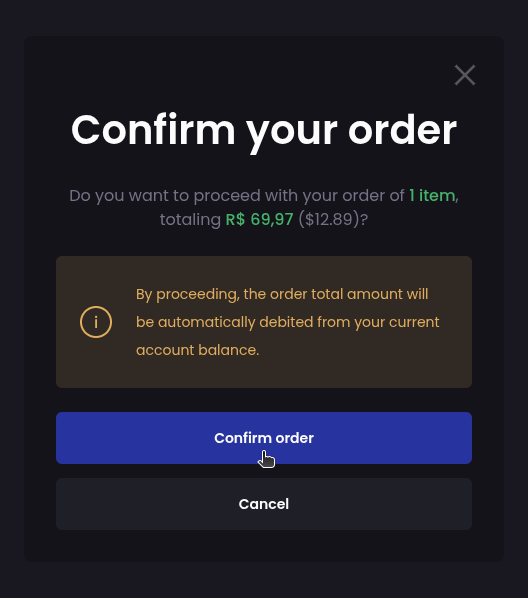
Finally, confirm your order:
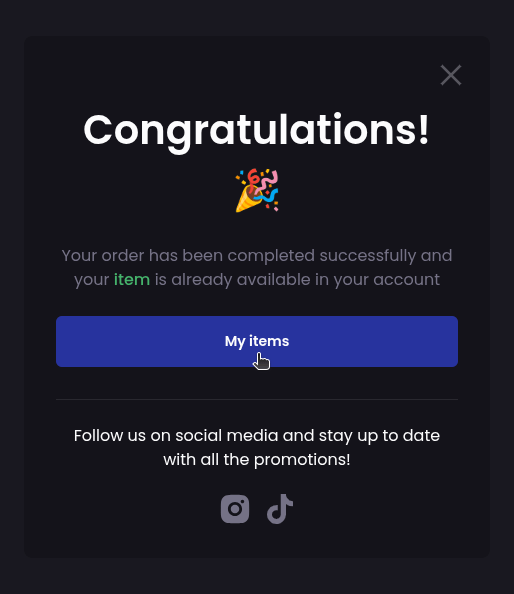
Done! Your order has been completed and your items are now in your inventory on the platform (an item in protection stays locked there until its release date):
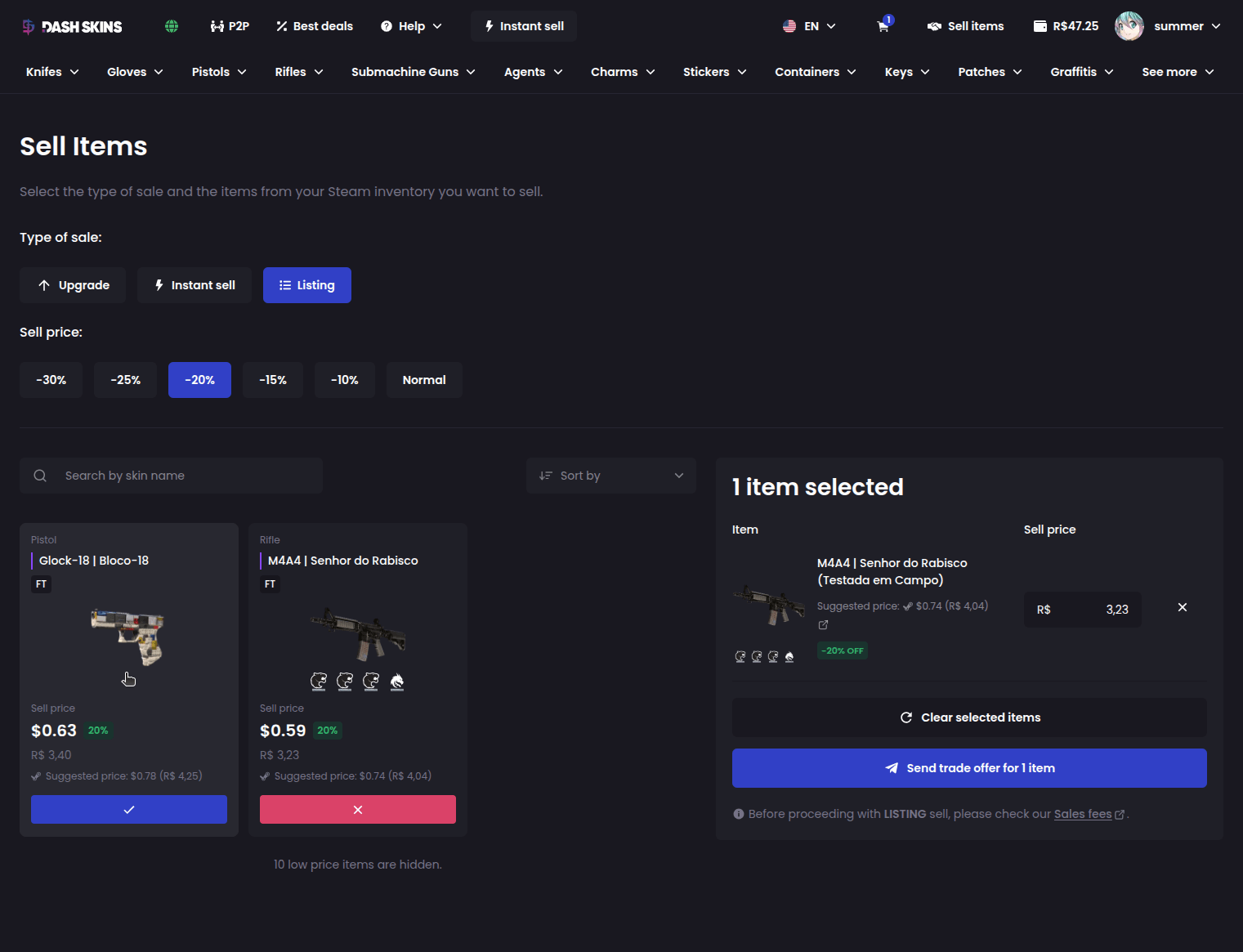
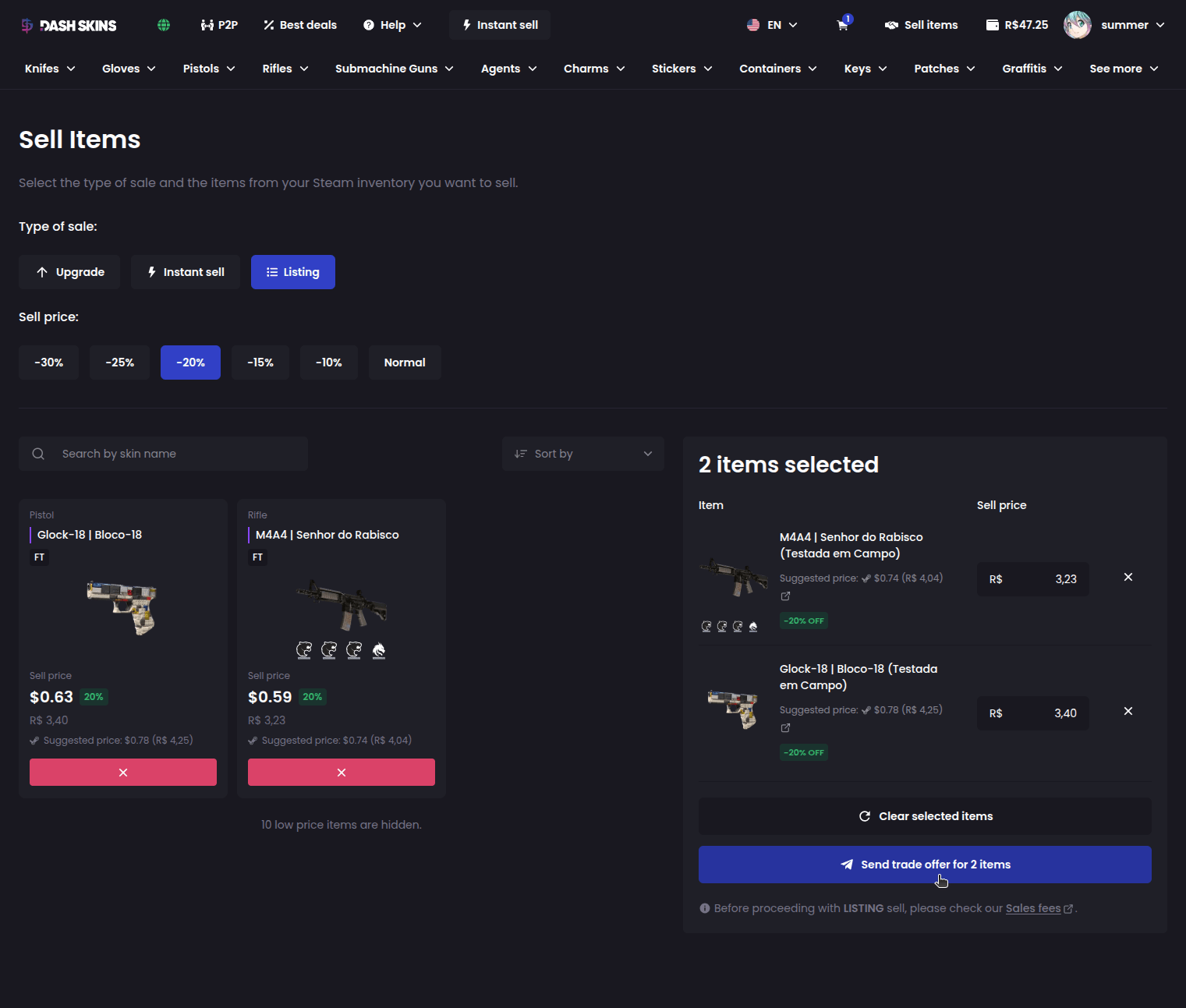
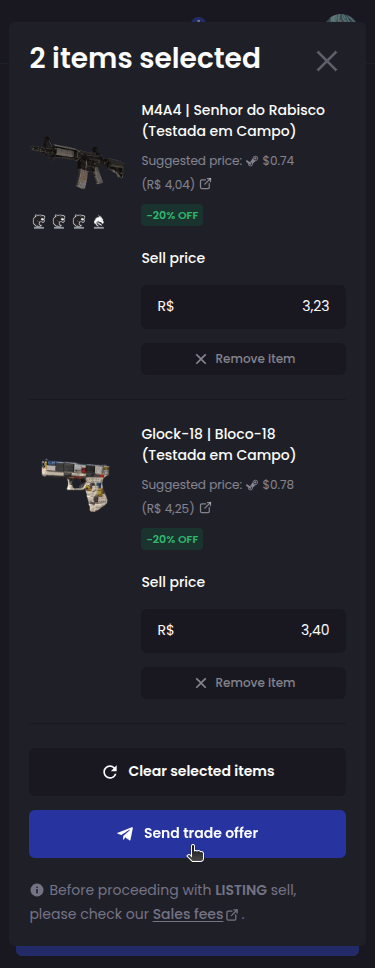
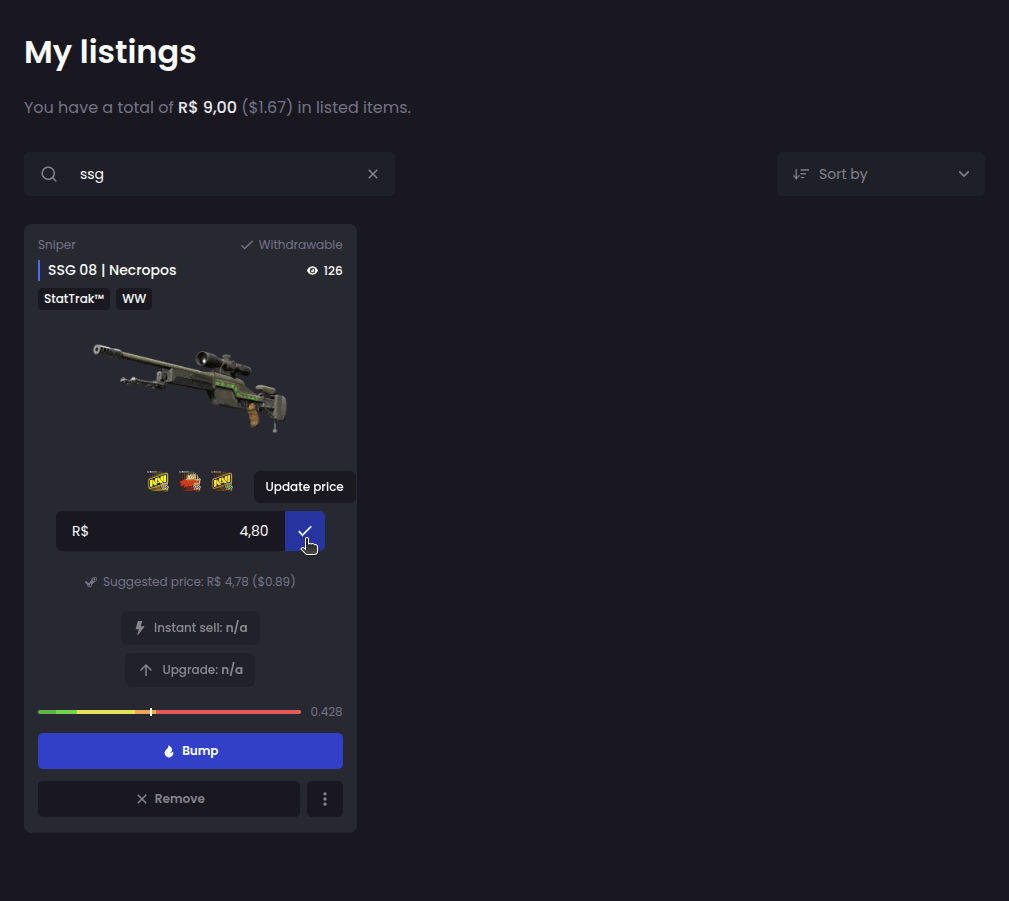
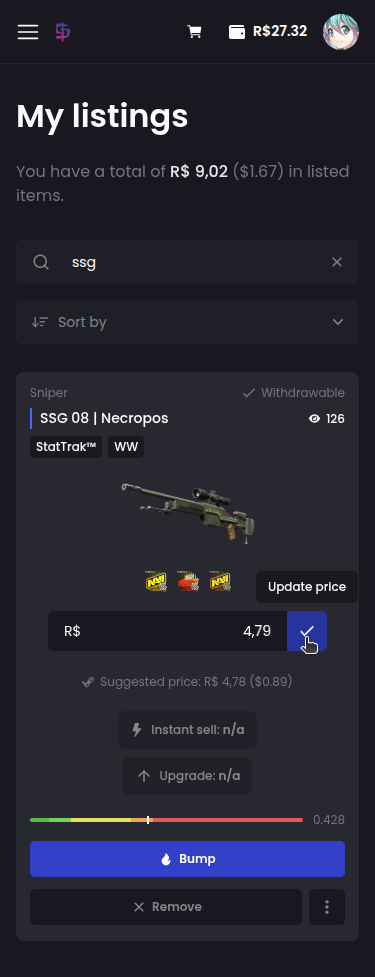
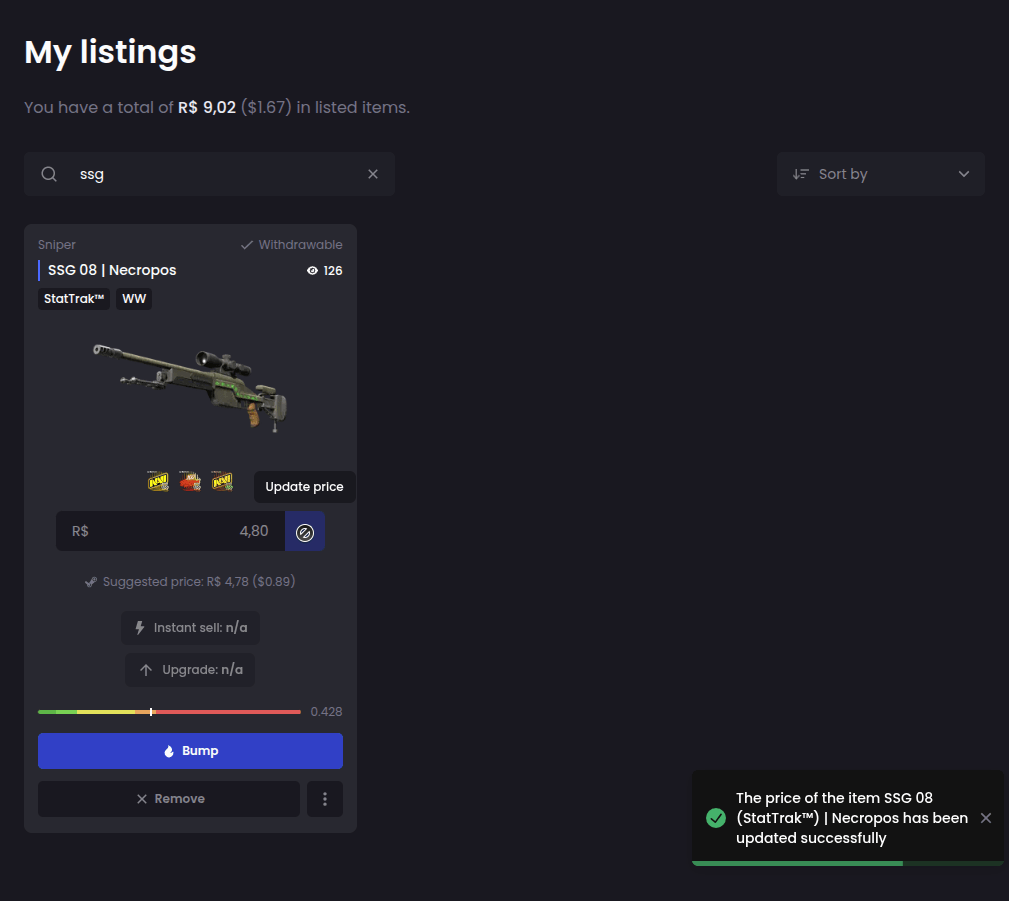
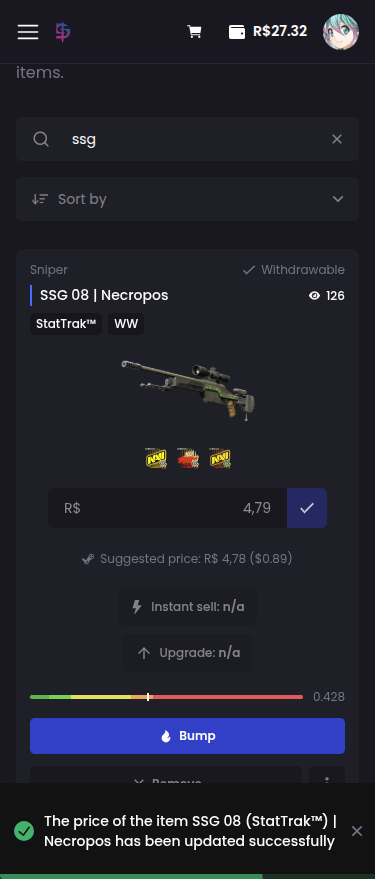
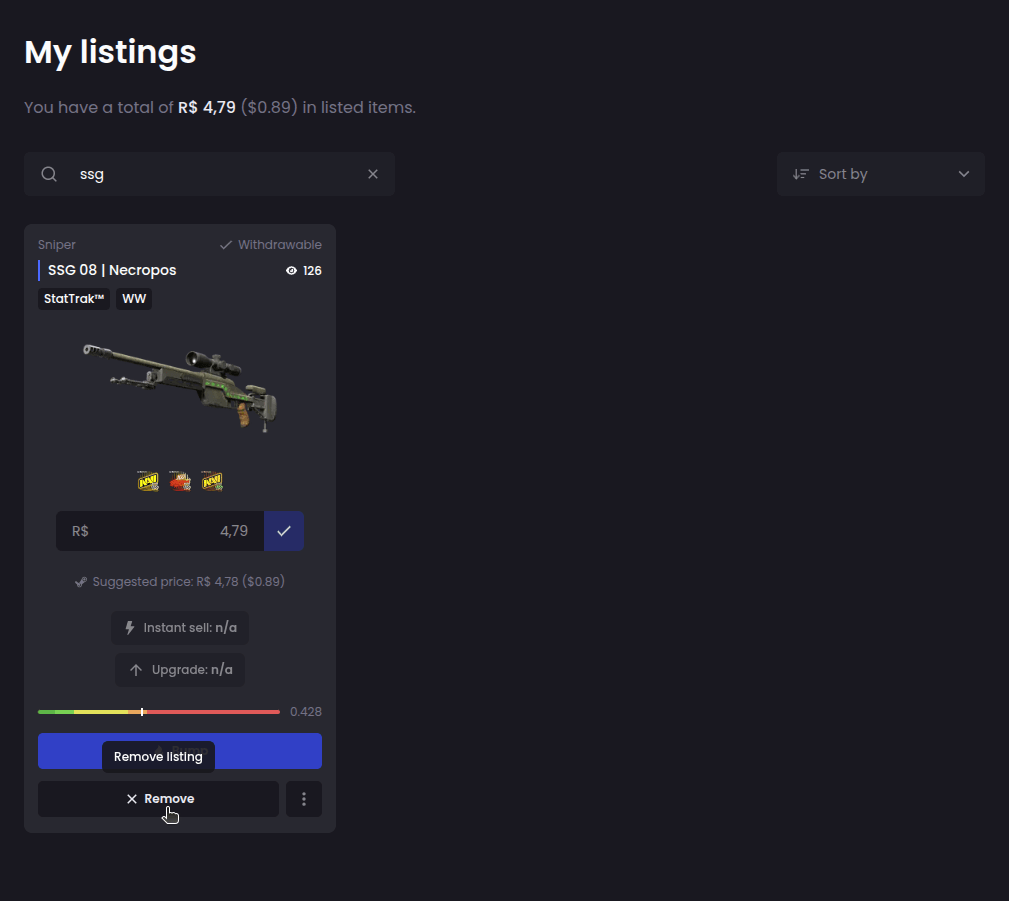
To assist with listing and selling, we provide to our users an average price of the most recent sales made on Steam for each item: the suggested price.
We emphasize that the suggested price may change at any time, and sales of disproportionate amounts made on Steam may interfere, so it should not be used as the sole basis for purchases and sales.
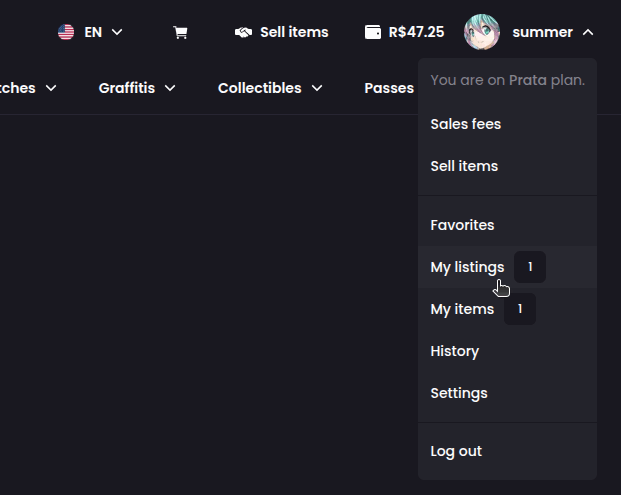
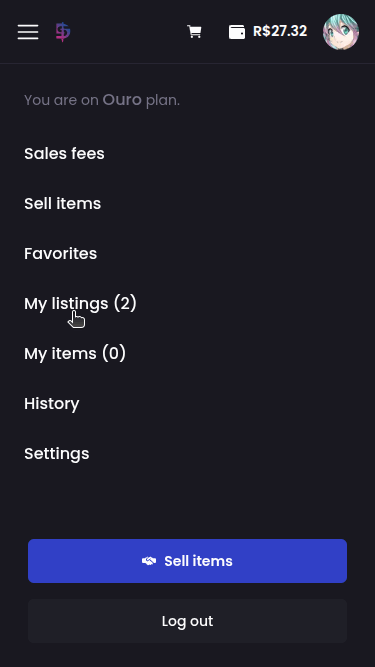
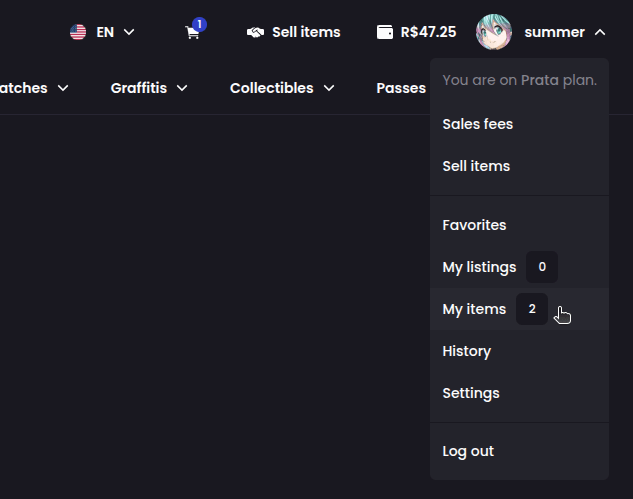
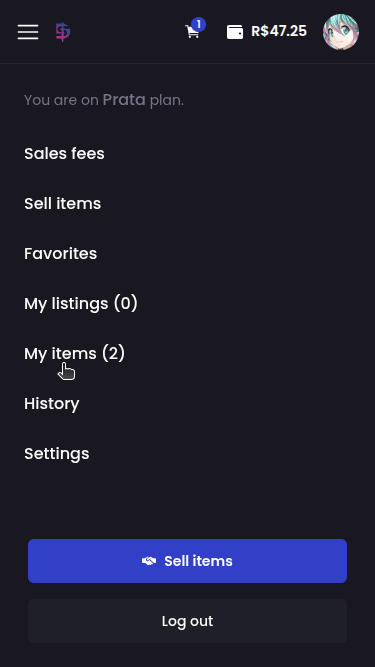
First access your inventory on the platform:
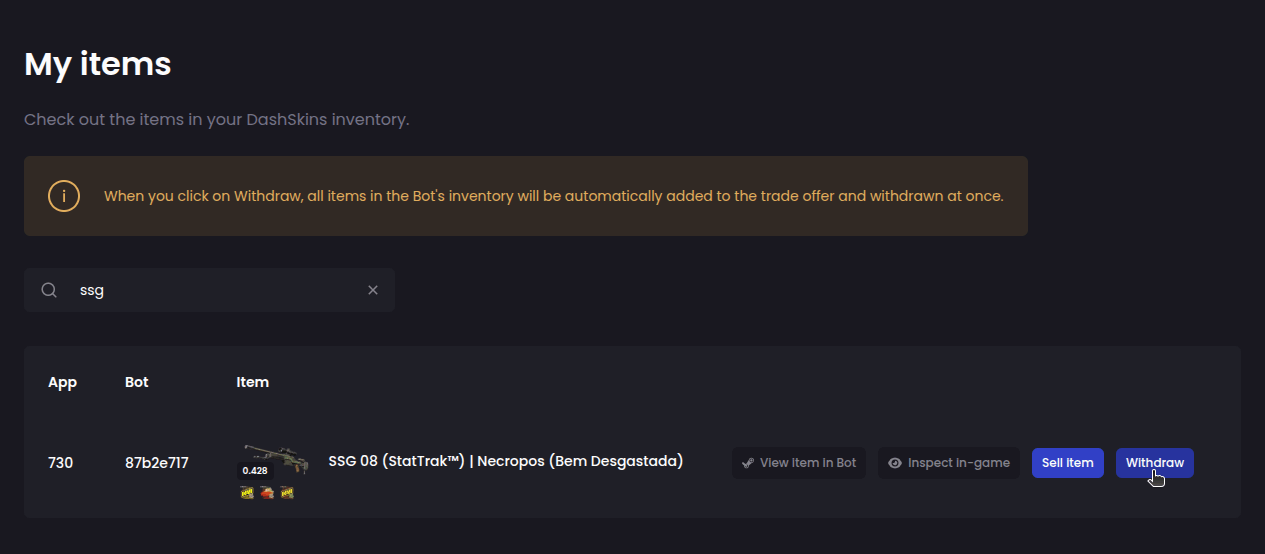
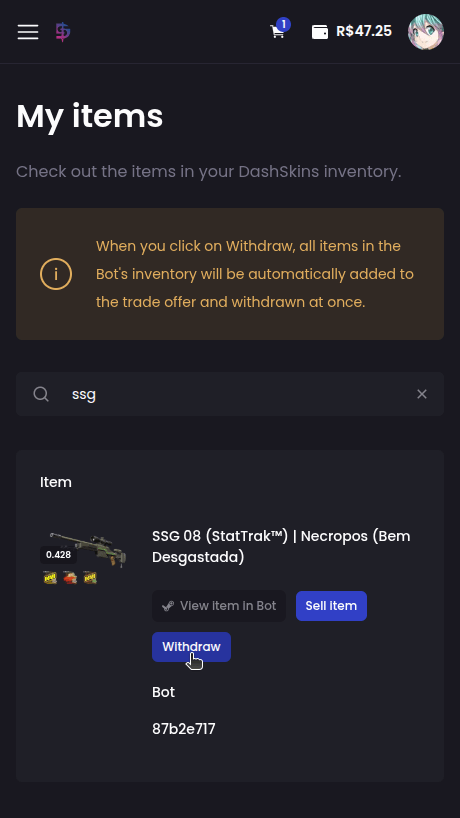
Find the item you want to withdraw to your Steam account and click Withdraw:
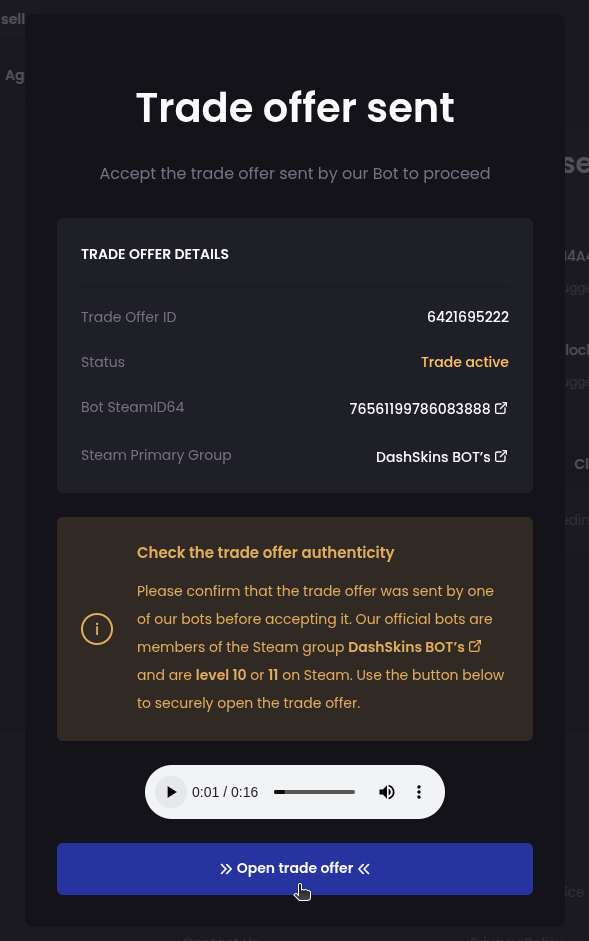
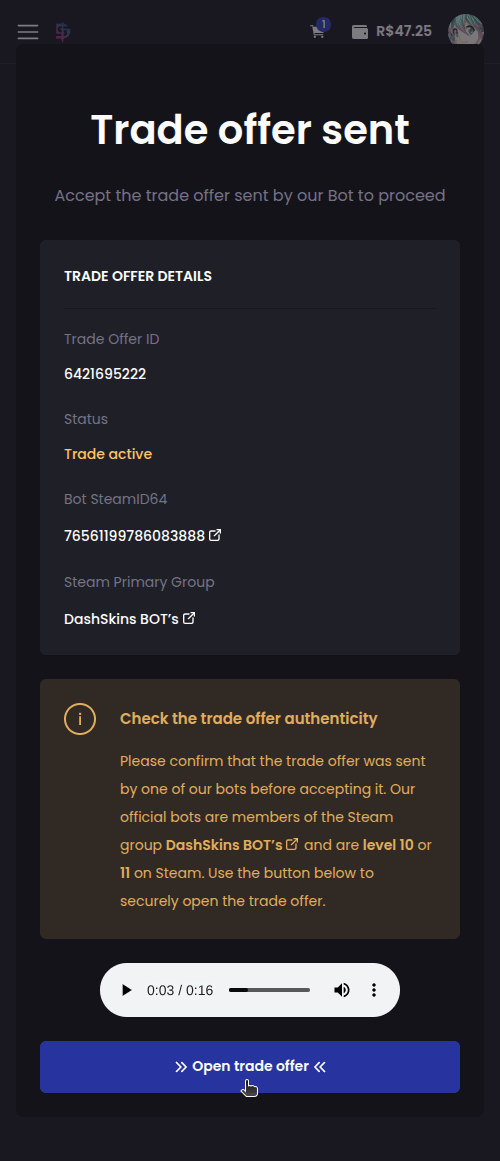
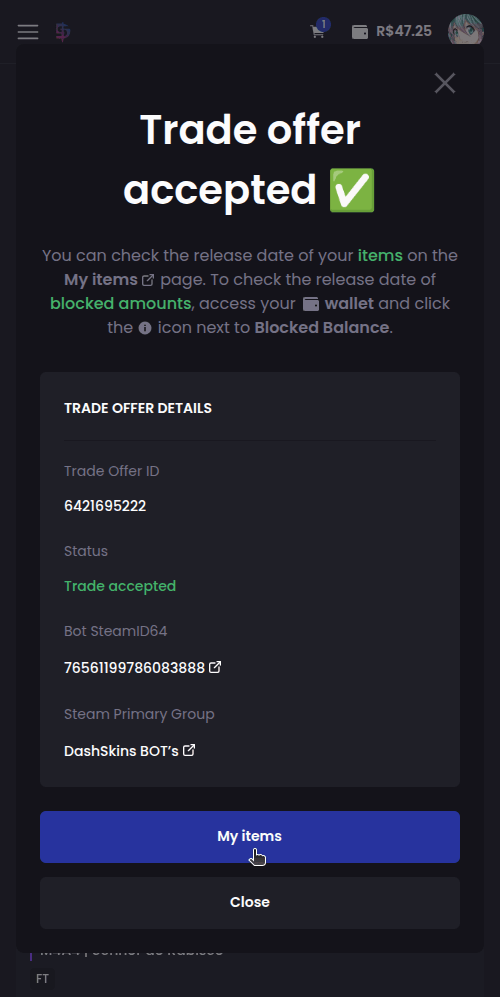
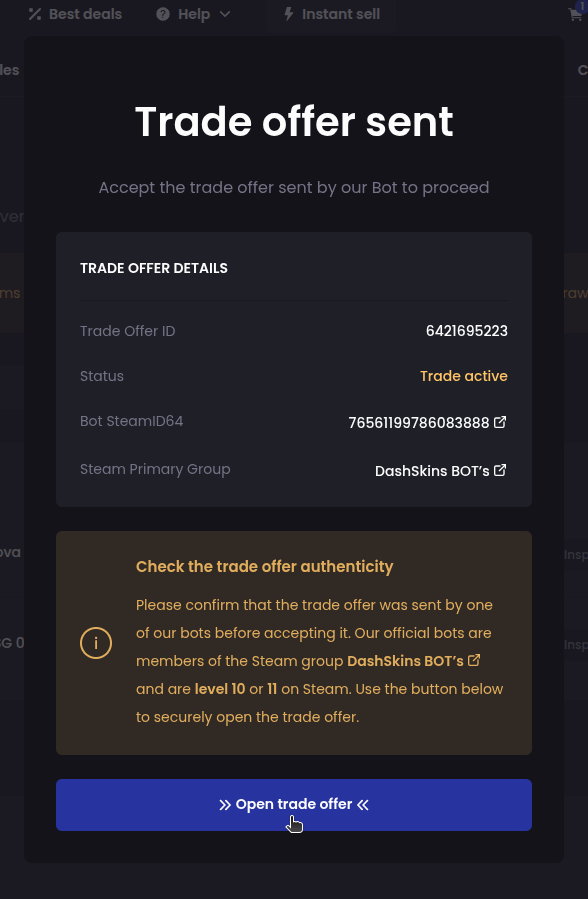
The next step is to accept the trade offer that our bot will send you with the item you selected:
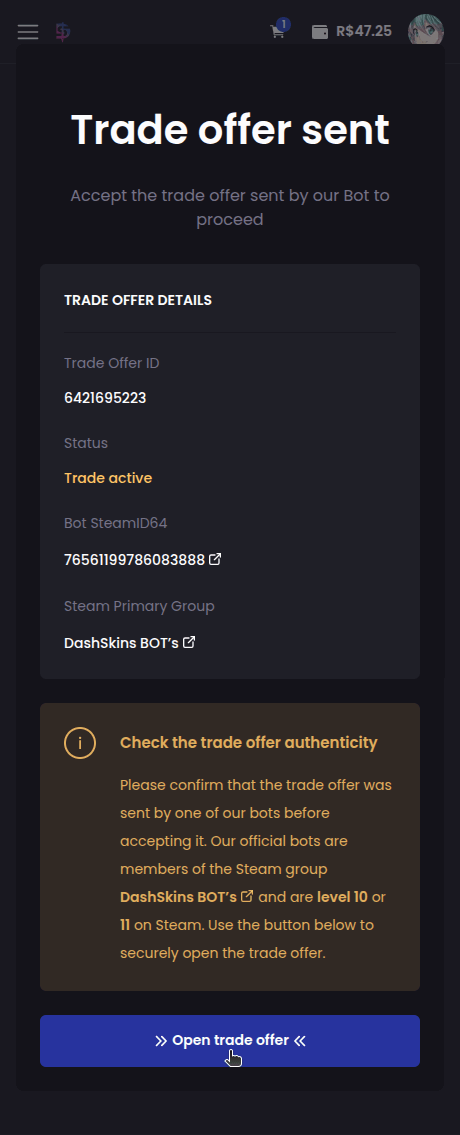
P.S.: If you have other items in your account that are in the same bot's inventory, they will be automatically added to the trade offer to be withdrawn as well.
Items in protection: items still in Steam's Trade Protection (your recent deposits and the ones bought during the protection) can only be withdrawn after each one's release date. Until then, the Withdraw button stays disabled and they are left out of "Withdraw all".
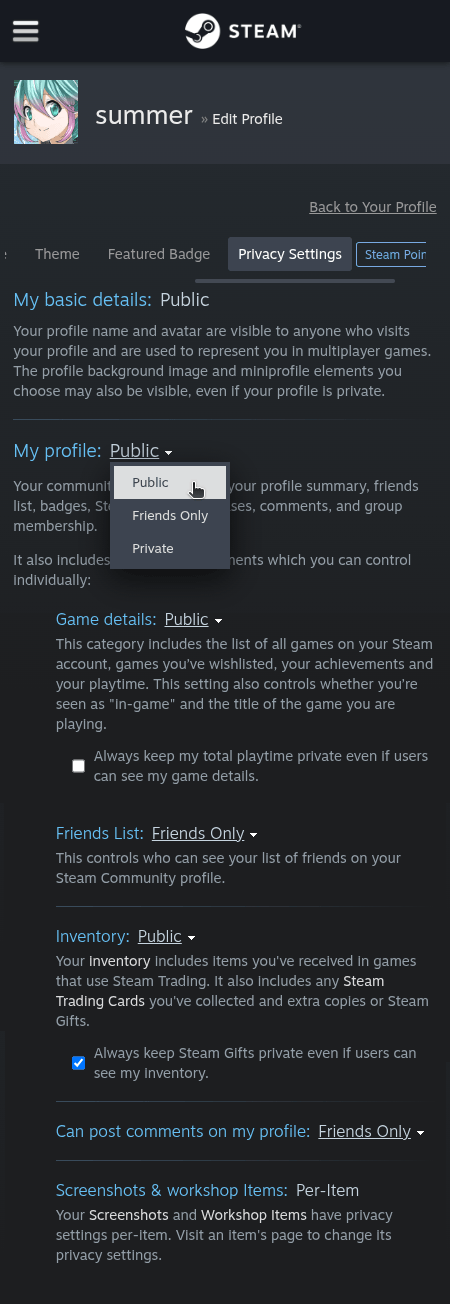
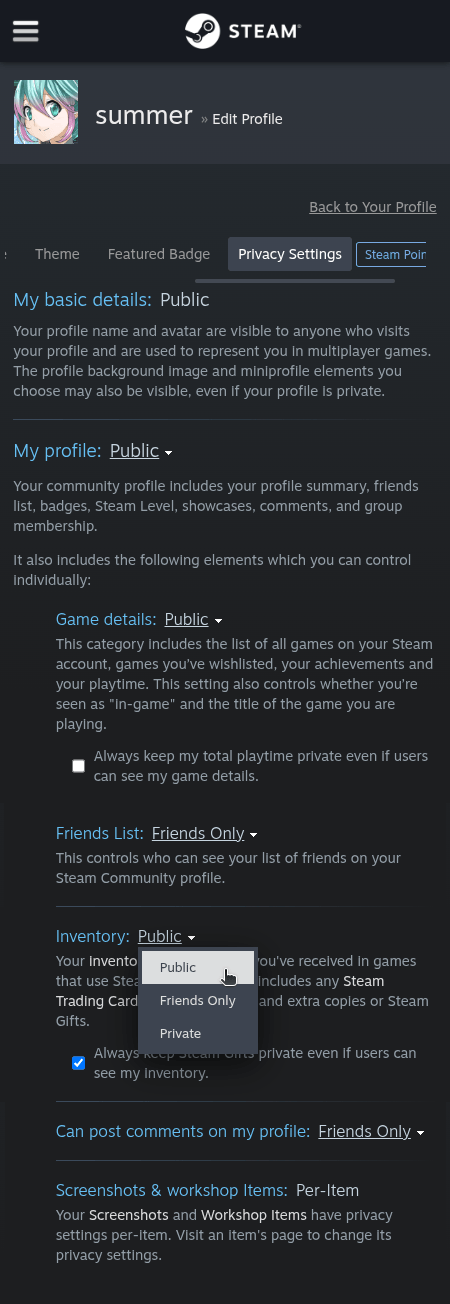
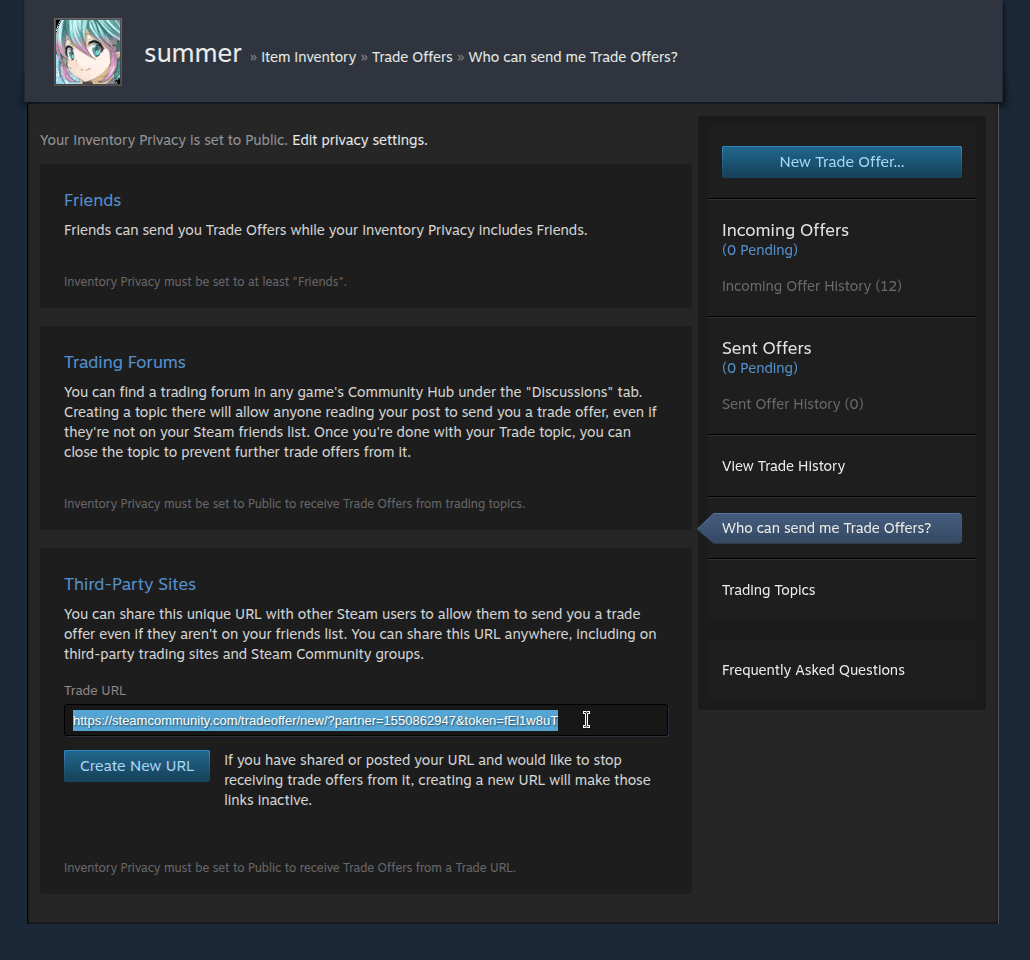
Before accepting any trade offer, always confirm that it was actually sent by one of our official bots! All our bots are level 10 or 11 on Steam and are members of the DashSkins BOT’s group.
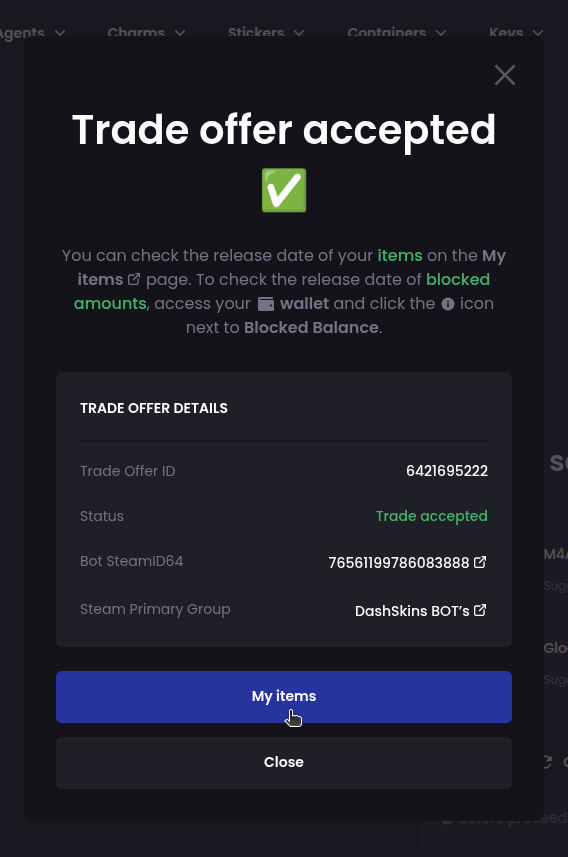
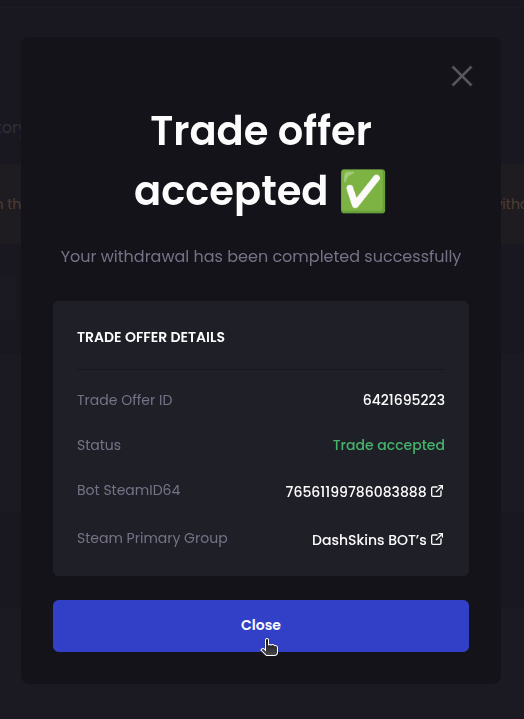
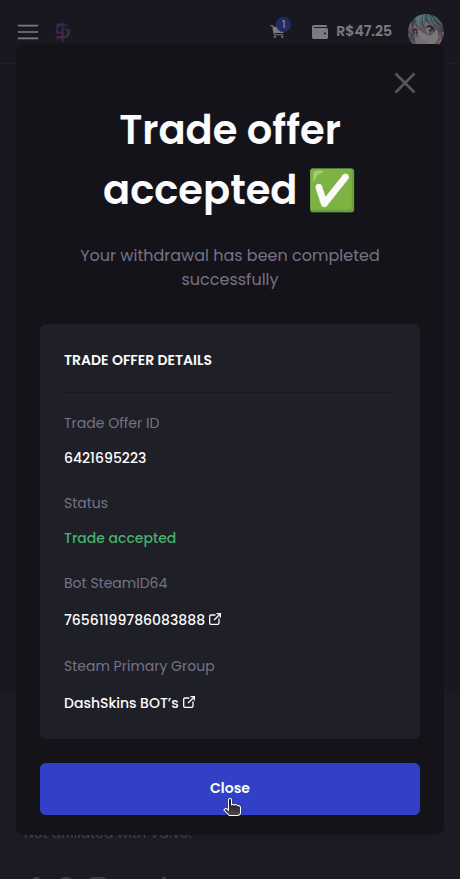
That's it! After accepting our bot's trade offer, your skins will be available in your Steam inventory:
Steam lets whoever made a trade reverse it for up to 7 days: that is Trade Protection. An item deposited on DashSkins goes through that period until its release date, shown with the lock (for example, "Unlocks in 3 days") and, with the exact date, on hover: "from Oct 29, 5:00 AM (BRT)". The date already has a margin and the release almost always happens before it.
When you buy: when your order has an item in protection, the confirmation shows each one's date and you tick the acceptance box before you finish. The item is delivered to your items at once, but stays locked until its release date: it can't be withdrawn, listed, sold, traded or used in bargains.
If whoever deposited the item reverses the trade on Steam, the purchase is undone: the item leaves your account and the amount goes back to your DashSkins balance, the way you paid (balance and bonus balance), not to the payment method. You are notified by e-mail and on the site, and the purchase shows up in your History, under "Undone".
When you sell: when listing during the protection is available for your account, the item you deposited can be listed right away, marked "In protection". If it is sold in that period, the amount stays in your Blocked balance until its release date and is released once we confirm the trade was not reversed. If the deposit trade is reversed, the sale is undone and the amount is not released. The same goes for instant and upgrade sales: the amount stays blocked until the release.
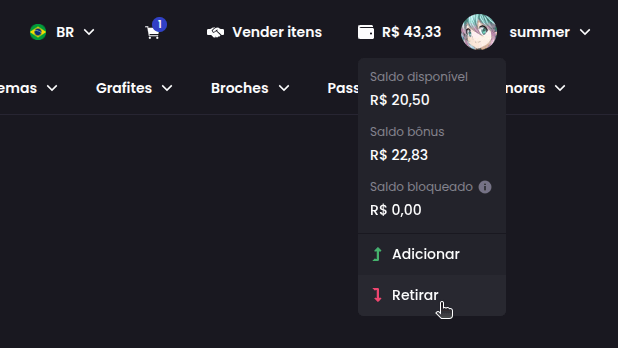
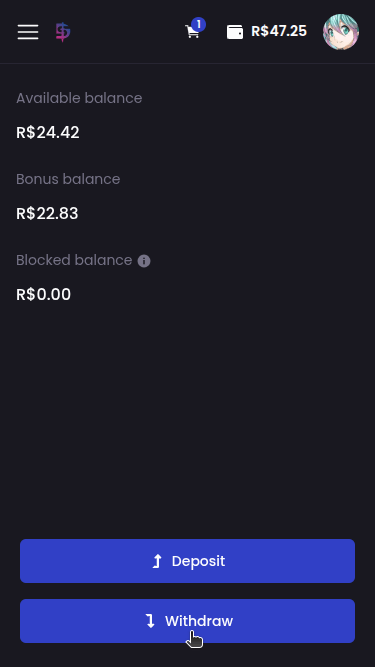
You can check each blocked amount, where it came from and when it is released in your wallet, on the icon next to Blocked balance.